
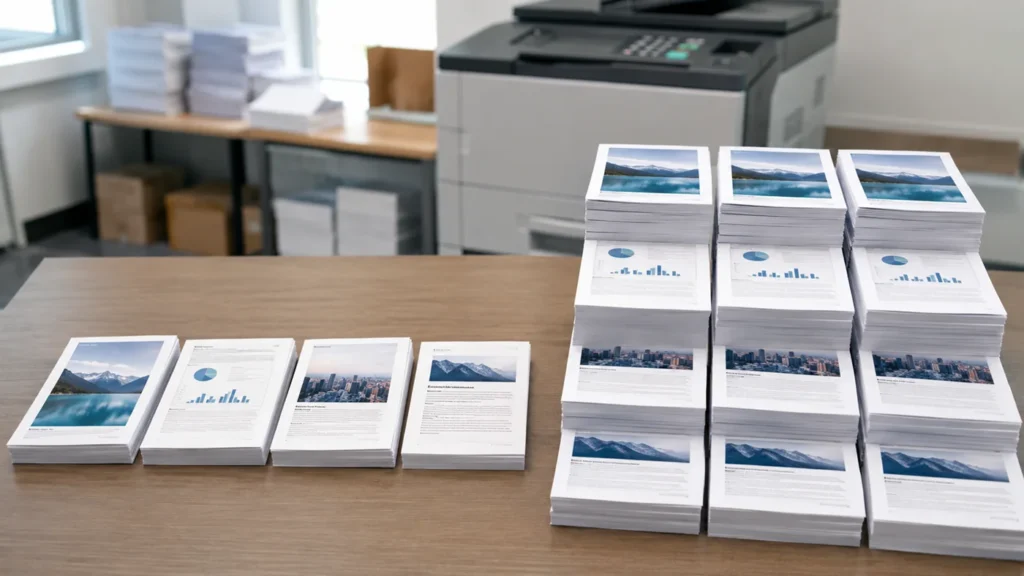
Collate means printing multiple copies of a multi-page document as complete sets in the correct page order. If you print three copies of a three-page file, collated output follows 1-2-3, 1-2-3, 1-2-3, while uncollated output follows 1-1-1, 2-2-2, 3-3-3.
Collation changes how printed pages are organized, not the design, color, quality, or number of pages. The right setting depends on whether you need ready-to-use document sets or separate stacks of identical pages.
Collated printing explained with a simple example
Collated printing completes one copy before starting the next. Five copies of a 12-page manual come out as five complete sets containing pages 1 through 12.
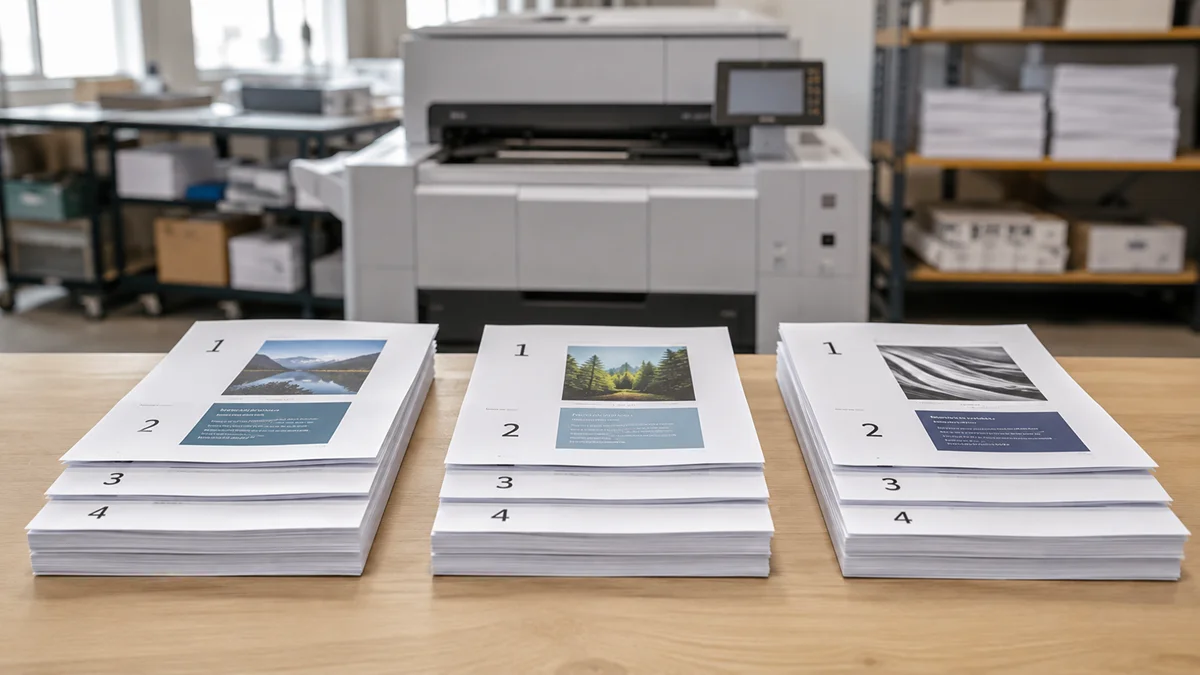
Page order with collation
Three copies of a three-page document print as 1-2-3, 1-2-3, 1-2-3. Each sequence forms a complete document that is ready to distribute, staple, bind, or pack.
Page order without collation
Uncollated output prints as 1-1-1, 2-2-2, 3-3-3. Someone must combine those separate page stacks when complete documents are required.
Collated vs uncollated printing
Collated and uncollated printing use the same source pages but arrange the finished output differently. The comparison below shows which workflow each setting supports.
| Comparison | Collated printing | Uncollated printing |
| Page order | Complete sequential sets | Identical pages grouped together |
| Example | 1-2-3, 1-2-3 | 1-1, 2-2, 3-3 |
| Manual sorting | Usually unnecessary | Required for complete sets |
| Best use | Reports, manuals, and packets | Flyers, labels, and separate sheets |
| Paper and ink | Based on the original job | Based on the original job |
Neither setting improves print quality. Collated output suits finished document packets, while uncollated output suits separate stacks of identical sheets.
When to use collated or uncollated printing
Choose collation when every recipient needs the same complete multi-page document. Reports, presentations, training packets, catalogs, contracts, manuals, and instruction booklets all depend on a readable page sequence.
Choose uncollated output when identical pages need to remain together. Flyers, worksheets, coupons, labels, product sheets, and forms are easier to count, distribute, or process as separate stacks.
Collation has little effect on one copy or a single-page file because no multi-page sets need organizing. Both settings produce the same practical result in those situations.
How the collate setting works
Collation may be handled by the application, printer driver, or printer hardware. Software can prepare the repeated page sequence, while compatible printers may store the job in memory and release each complete set in order.
Capabilities vary by model, driver, and finishing equipment. Some machines can collate and staple in one run, but the two functions remain separate.
How to enable or disable collation
Select more than one copy because some interfaces hide collation for single-copy jobs. Print one test set before using expensive stock or starting a large run.
Microsoft Office applications
Open the document, select File and Print, and enter the required number of copies. Choose Collated or Uncollated when the option appears in the print settings.
The exact location can vary by Microsoft Office application, operating system, and printer driver. Printer Properties may contain additional controls when the main print window does not display the setting.
PDF readers
Open the PDF print dialog, select multiple copies, and look for Collate, Copies, or Printer Properties. Review the page preview before approving the job.
Combine separate PDFs into one correctly ordered file first. Standard collation organizes pages within one print job but does not automatically combine independent files.
Windows and macOS print dialogs
Windows applications may place the option under Copies, Settings, Preferences, or Printer Properties. The printer driver can affect which controls appear.
macOS applications may display Collate Sheets under paper-handling or copy settings. Available options can vary according to the application and connected printer.
Collation with double-sided and reverse-order printing
Collation and double-sided printing control different parts of a print job. Collation organizes complete document sets, while duplex printing places content on both sides of each sheet.
Both settings can operate together. A document may be collated and single-sided, collated and double-sided, or uncollated and double-sided.
Long-edge and short-edge options control how the reverse side rotates, while reverse-order printing determines which page exits first. Test the page sequence, orientation, and binding edge separately before approving production.
Collation before stapling binding and booklet printing
Collation places sheets in the correct order, whereas stapling and binding physically join them. A printer with an inline finisher may perform both tasks automatically, but selecting Collate alone does not fasten the pages.
Booklet printing uses a process called imposition. Page numbers may look out of sequence on flat sheets but appear in the correct reading order after the sheets are folded and bound.
Manual and automatic collation
Automatic collation suits standard documents printed on consistent paper, while manual collation helps with tabs, dividers, specialty stocks, or separately printed sheets. Automated output generally requires less handling and reduces the chance of page mix-ups.
Manual assembly provides more flexibility for complex jobs. Every finished set still requires a careful sequence check before stapling, binding, distribution, or packing.
How collation affects printing speed and cost
Collation normally does not increase paper or ink use because the same pages and quantities are printed. Page count, color coverage, stock, copy quantity, and test waste determine material consumption.
Large files may process more slowly when printer memory is limited. Print providers may also charge separately for manual sorting, stapling, folding, binding, or other finishing services.
Common collation problems and practical fixes
Most collation failures come from the source file, application settings, printer driver, or an interrupted print run. The following checks can help identify the cause before the entire job is printed again.
- Collate option is unavailable: Increase the copy quantity and confirm that the file contains multiple pages. Check Printer Properties or update the printer driver if the control remains hidden.
- Pages print in the wrong order: Review the PDF page sequence, reverse-order setting, and software collation option. Check duplex orientation because an incorrect binding edge can make the reverse pages appear inverted.
- Document sets are incomplete: Identify the last complete set after clearing a paper jam or printer error. Divide memory-heavy documents into smaller batches if the device pauses, repeats pages, or skips part of the job.
- Separate files do not collate: Combine the files into one correctly ordered PDF or ask the print provider to assemble them as one job. Sequential names such as page1.pdf and page2.pdf do not automatically create a shared printing sequence.
Collation for packaging inserts and product manuals
Collation helps keep multi-page information organized when each package requires a complete document set. Retail packaging may contain instruction booklets, warranty documents, safety guides, product-care sheets, or onboarding materials that customers need to receive in the correct order.
Accurate collation reduces the risk of duplicate warranties, missing instructions, and misordered manuals during fulfillment printed packaging inserts should be planned around the box layout and packing sequence, followed by a final quality check to confirm that every package contains the correct materials.

Tips for accurate collated printing
A brief preflight can prevent reruns, wasted stock, and finishing delays. Use the following checks before approving a large production job.
- Verify the source file: Confirm the page order, document size, orientation, blank pages, and copy quantity. Combine all related pages into one file before sending the job to print.
- Print one complete test set: Review the sequence, orientation, print quality, and finishing position. Approve the test before using specialty stock or printing the full quantity.
- Define the finished output: State the number of complete sets and whether they require stapling, folding, binding, or insertion into packaging. Clear instructions prevent collation from being confused with finishing.
- Inspect the first production sets: Compare several completed sets with the approved source file. Early checks can identify missing, duplicated, or incorrectly oriented pages before the error affects the full run.
Final Words
Collated printing produces complete multi-page sets, while uncollated printing keeps identical pages together. Choose the setting that matches the next step in your workflow, and verify duplex, reverse-order, and finishing options separately.